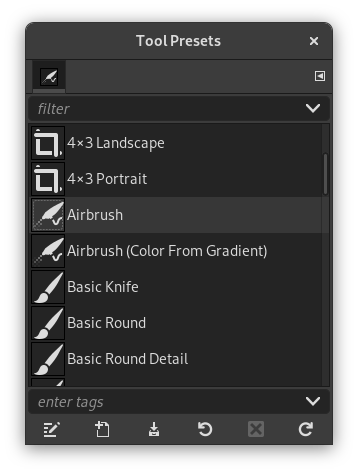
The Tool Presets Dialog shows a list of all saved tool presets. Clicking on a preset opens the corresponding tool with its saved presets.
This dialog is a dockable dialog; see the section Section 2.3, “Dialogs and Docking” for help on manipulating it.
You can access it:
-
from the main menu: → → ;
-
from the Tab menu in any dockable dialog by clicking the tab menu button
 and selecting
→ .
This dialog comes with a list of predefined presets. Each of them has an icon representing the tool presets will be applied to and a name.
Presets can be tagged so that you can arrange presets display as you want. Please see Section 3.7, “Tagging” for more information about tagging.
Double-clicking on a preset icon opens the Tool Preset Editor.
Double-clicking on preset name allows you to edit this name.
The button bar at the bottom offers the following functionality:
-
 Edit this tool preset: clicking on this button
opens the Tool Preset Editor for the selected preset.
The Tool Preset Editor is described in
Section 7.3, “Tool Preset Editor”.
-
 Create a new tool preset: before clicking on
this button, you can either select an existing preset, or select a
tool in Toolbox, for example the Healing Tool which is not in the
presets list. A new preset is created at the top of the dialog and
the Tool Preset Editor is opened. Please see
Section 7.3, “Tool Preset Editor”.
-
 Save the active tool options to this preset:
this saves the current tool settings to the selected preset.
-
 Restore this tool preset: this restores the
tool settings to the values saved in the selected preset.
-
 Delete this tool preset: this deletes the
currently selected preset. Note that this button is disabled for
the default presets that come with GIMP.
-
 Refresh tool presets: If you have added a
preset manually to the Tool Presets folder
configured in the
Folders Preferences,
you have to click on this button to include it in the presets list.
Right-clicking on the Presets Dialog opens a context menu where you find some commands already described with buttons: Edit tool preset, New tool preset, Save tool options to preset, Restore tool preset, Refresh tool presets. Additional commands are:
- Duplicate Tool Preset
-
Duplicate Tool Preset: this command is always disabled. It is not necessary since, as we saw above, a duplicate is automatically created when you create a new preset from an existing preset.
- Copy Tool Preset Location
-
Copy Tool Preset Location allows you to copy the path of the selected tool preset to the clipboard.
- Show in File Manager
-
Show in File Manager opens the location of the tool preset in the default File Manager on your system.


