Figure 16.191. “Rotate Colors” filter example
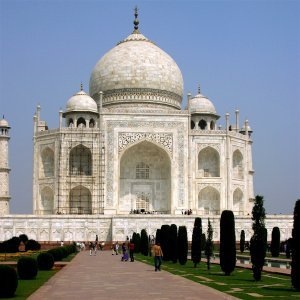
Original image
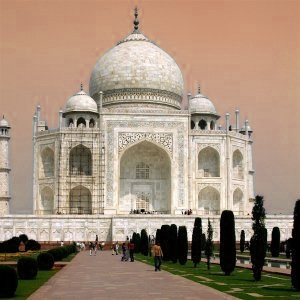
Filter “Rotate Colors” applied; the blue color of the sky is within the source range and gets converted to the orange color in the destination range
Colormap Rotation lets you exchange one color range (the Source Range) to another range (the Destination Range).
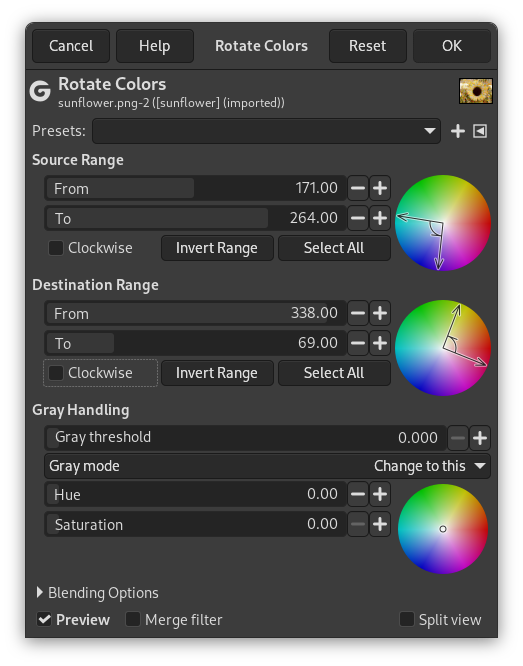
- Presets, Blending Options, Preview, Merge filter, Split view
-

Note These options are described in Section 8.1.2, “Colors Common Features”.
- Source Range, Destination Range
-
Both source and destination range have a color wheel range selection circle. You can drag both arrow handles to the color location you want. They correspond to the From and To sliders listed below.
- From
-
The angle of the starting position of the color range on the color wheel.
- To
-
The angle of the ending position of the color range on the color wheel.
- Clockwise
-
When checked the range from start to end is computed clockwise, else counter-clockwise (default).
- Invert Range
-
This button inverts the From and To values.
- Select All
-
This button selects all colors to be inside the range.
- Gray Handling
-
In this section, you can specify how to treat gray. By default, gray is not considered as a color and is not taken in account by the rotation. Here, you can convert slightly saturated colors into gray and you can also convert gray into a color depending on the settings below.
The small circle in the color wheel adjusts the Hue and Saturation that will be used to select the color that represents gray. They correspond to the Hue and Saturation sliders listed below.
- Gray threshold
-
This slider selects which colors will be treated as gray. Colors with a Saturation less than this value will be converted to the selected "gray" color.
- Gray mode
-
-
Treat as this causes gray colors inside the source range to be treated as if they had this Hue and saturation. The color will be rotated according to the source and destination ranges.
-
Change to this will change gray colors to the selected Hue and Saturation without any rotation.
-
- Gray Handling
-
Using the same example as at the top of this page, but now with the following gray handling settings used: Gray threshold 0.340, Hue 220.0, Saturation 0.75.
Note If you want gray instead of a different color, you should leave Hue and Saturation at 0.
Figure 16.193. “Rotate Colors” filter examples for gray handling
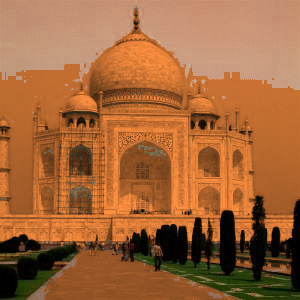
Gray mode set to Treat as this: any color with a Saturation below 0.34 will be converted to orange because the selected blue Hue, Saturation in the source range rotates to orange in the destination range.
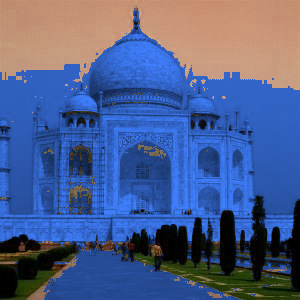
Gray mode set to Change to this: the rotation is now ignored and the color is picked directly based on the chosen Hue and Saturation.
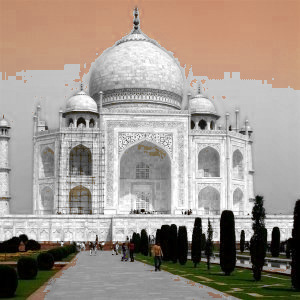
Saturation and Hue set to 0 turns anything below the threshold to gray.


