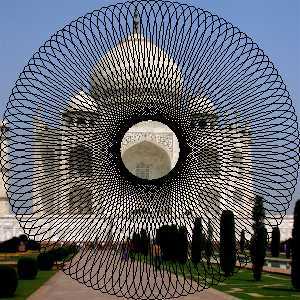
This filter draws Spirographs, Epitrochoids, and Lissajous curves. Immediate feedback is provided, by drawing to a temporary layer.
It reproduces curves drawn by Spirograph© toys. Here is an example from Wikimedia Commons showing what gears and holes are:
Moving gear is inside fixed gear and only one hole is used.
Much of the behavior of the plug-in is determined by options set outside of the plug-in, such as the current selection, or the settings of GIMP's tools. These settings can be changed while the plug-in is running.

|
Note |
|---|---|
|
In contrast to options within the plug-in, changing the current selection or tool settings will not redraw the pattern. To show the changes, click the button at the bottom of the plug-in. |
As in most plug-ins, the current selection determines the area where the pattern will be rendered. Typically, this would be a rectangular selection. There is however, an additional way the selection can be used.
The selection can be used as the shape of the fixed gear (under the Fixed Gear tab). The plug-in will attempt to extract shapes from the selection, and draw a pattern inside of each shape. This is more interesting if you select a non-rectangular selection.
To have the pattern hug the boundaries of the shapes, use hole percent=100.
Spyrogimp uses GIMP's tools to perform the drawing. All the settings with which the drawings are done are taken from the chosen tool. For example, if you want to use the Pencil tool (by choosing it from the Tool menu), then all the settings of this tool will be used for drawing. You can change any of the tool settings while the plug-in is running, and press the button to see how the pattern looks.
Most of the options are organized under three tabs: Curve Pattern, Fixed Gear, and Size.
- Curve Type
-
The available curve types are: Spyrograph, Epitrochoid, Sine, and Lissajous. These correspond to physical models for drawing them, using either gears or springs. Spyrograph and Epitrochoid curves are obtained by using two gears - a fixed gear, and a moving gear. A Spyrograph pattern is obtained when the moving gear is rotated inside the fixed gear. When the moving gear is outside the fixed gear, an Epitrochoid pattern is generated. The Sine curve uses the fixed gear, but instead of a moving gear, there is a spring that moves perpendicular to the fixed gear's edge. The Lissajous curve is generated by two springs, which move on the x and y axis. It does not use the fixed ring at all, and thus is not affected by changing it.
Figure 17.412. “Spyrogimp” Curve Types
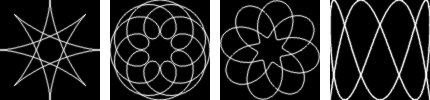
Curve types from left to right: Spyrograph, Epitrochoid, Sine and Lissajous.
- Tool
-
The GIMP tool with which to draw the pattern. The first tool is named Preview and its purpose is to draw quickly, rather than beautifully - so the pattern can be previewed. The other available tools are: PaintBrush, Pencil, AirBrush, Stroke, Ink, and MyPaintBrush.
- Long Gradient
-
When unchecked, the current tool settings will be used - this can either produce a gradient or not, depending on the tool settings. When checked, the plug-in will produce a long gradient to match the length of the pattern, based on the current gradient, the "Reverse" setting, and the Repeat mode from the gradient tool settings. Setting the Repeat mode to Triangle Wave will produce a pattern that changes continuously, with no abrupt breaks. This is done by using the gradient followed by its reverse. Any other Repeat mode will simply use the gradient from start to finish.
Figure 17.413. “Spyrogimp” Long Gradient Examples
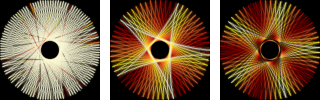
The left image, without Long Gradient, used the paintbrush tool with a gradient. The two right images were generated with the same gradient, but with Long Gradient checked. The right image used the Triangle Wave Repeat mode.
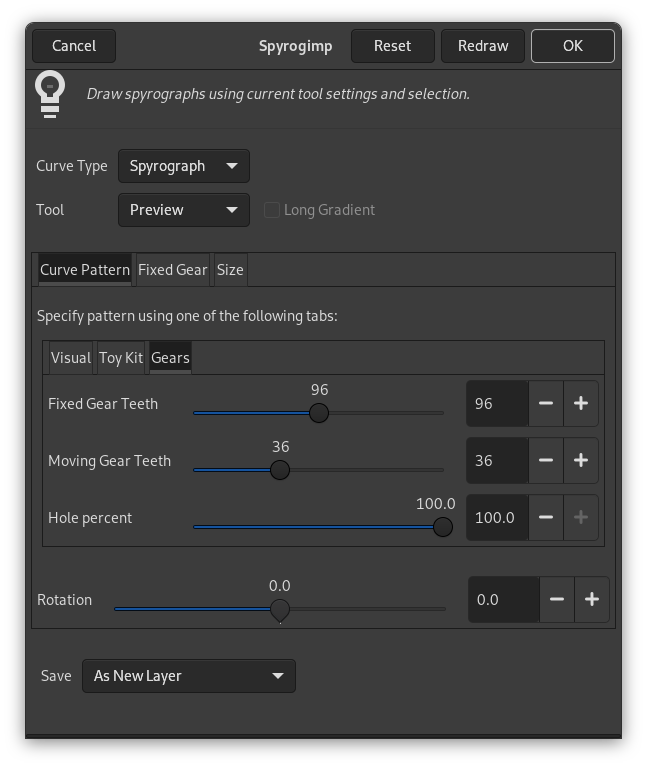
Figure 17.414. “Spyrogimp” filter options (Curve Pattern)
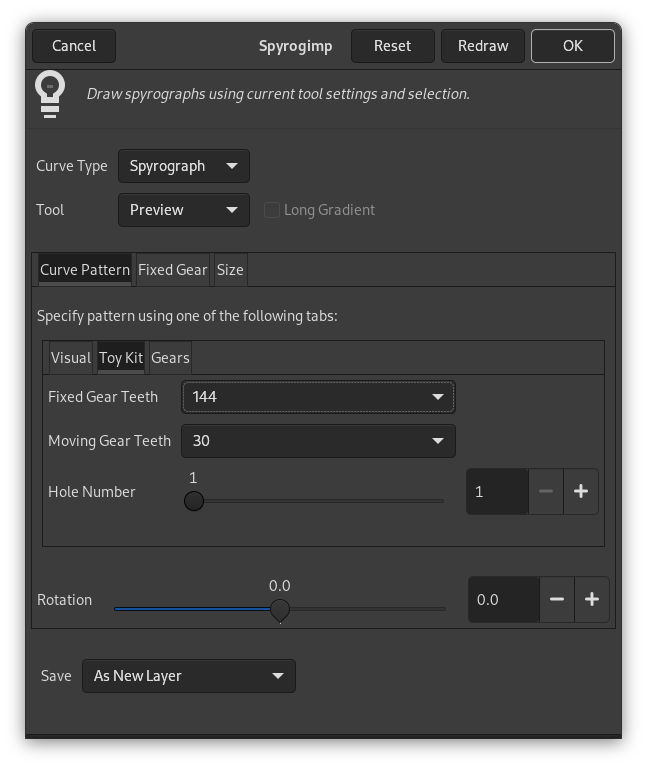
The inner Toy Kit tab is shown on the right.
Specify a pattern using the Gears, Toy Kit or Visual tabs. The pattern is based only on the settings of the active tab. Toy Kit is similar to Gears, but it uses gears and hole numbers which are found in toy kits. If you follow the instructions from the toy kit manuals, you should obtain similar results.
- Fixed Gear Teeth
-
Number of teeth of fixed gear. The size of the fixed gear is proportional to the number of teeth.
- Moving Gear Teeth
-
Number of teeth of moving gear. The size of the moving gear is proportional to the number of teeth.
- Hole percent
-
How far is the hole from the center of the moving gear. 100% means that the hole is at the gear's edge.
The Toy Kit tab also has Fixed Gear Teeth and Moving Gear Teeth options. In this case, however, they are limited to gear sizes that are provided with toy kits for drawing Spyrographs.
- Hole Number
-
Hole #1 is at the edge of the gear. The maximum hole number is near the center. The maximum hole number is different for each gear.
Figure 17.415. “Spyrogimp” Toy Kit Examples
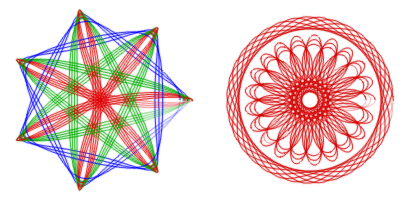
The Toy Kit helps recreate designs from the toy kit. The left image uses a 105 fixed gear, and a 30 (blue), 45 (green) and 60 (red) moving gears, where each moving gear was used several times with Hole Number varying from 3 to 7. The right image also uses the 105 fixed ring, with moving ring 24 (Hole Number 4), and moving ring 80 (Hole numbers 16, 18, 20).
Figure 17.416. “Spyrogimp” filter options (Curve Pattern)
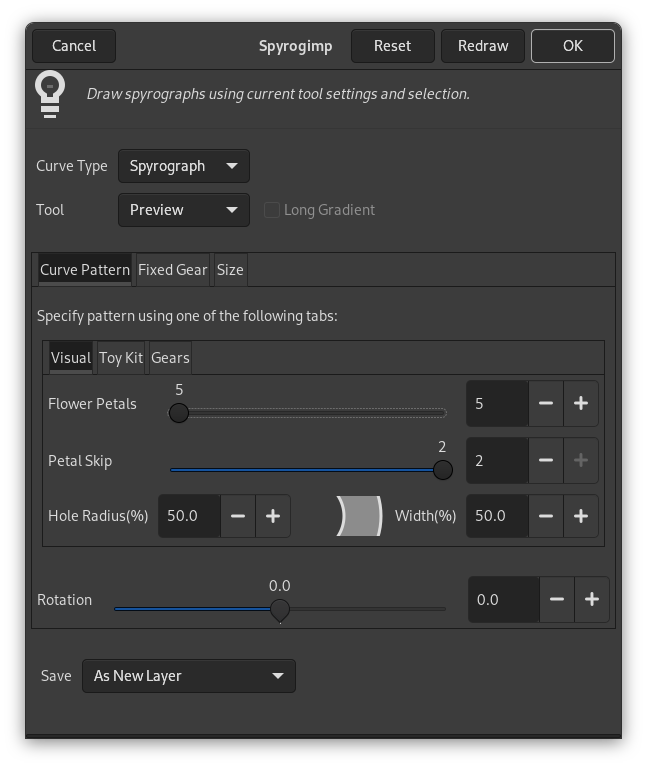
The Visual tab is shown in the middle on the right side.
The Visual tab creates more rounded, flower petal like patterns. It has the following settings:
- Flower Petals
-
The number of flower petals to draw.
- Petal Skip
-
The number of petals to skip.
- Hole radius (%)
-
The size of the hole.
- Width (%)
-
The width of the drawing.
Below the tabs there is an additional option.
- Rotation
-
Rotation of the pattern, in degrees. The starting position of the moving gear in the fixed gear. Note that this also changes the pattern when drawing Lissajous curves.
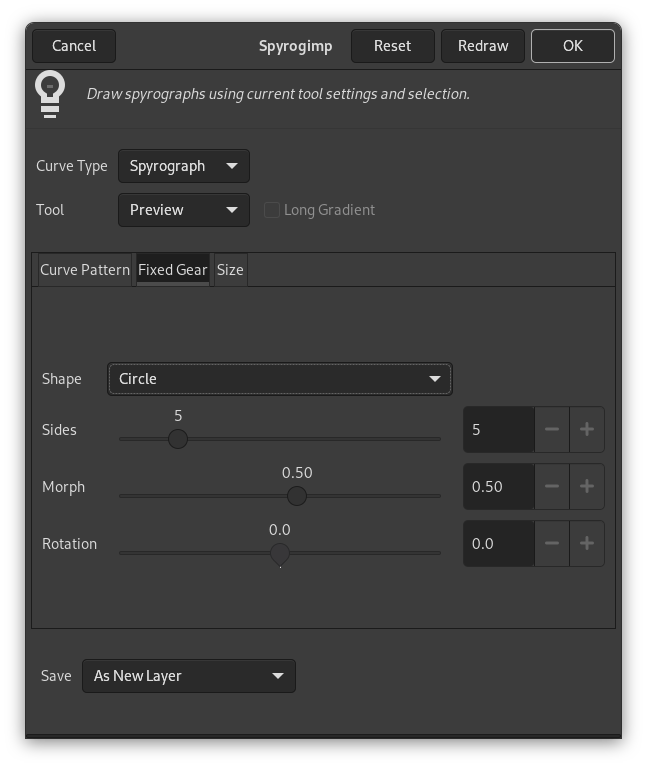
- Shape
-
The shape of the fixed gear to be used inside current selection.
-
Circle
-
Rack is a long round-edged shape provided in the toy kits.
-
Frame hugs the boundaries of the rectangular selection, use hole=100 in Gear notation to touch boundary. To generate a narrow frame width, use a small number of teeth for the moving gear.
-
Selection will hug boundaries of current selection - try something non-rectangular.
-
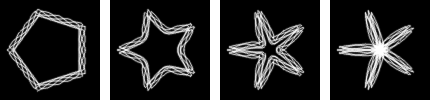
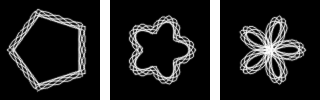
Polygon-Star morphs from an n-sided polygon (morph=0) to an n-sided star (morph=0.3) to a crazy flower (morph=1).
-
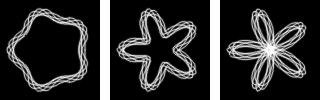
Sine with morph=0, it is just like a circle, but becomes more wavy as morph increases.
-
Bumps morphs from a polygon (morph=0) to a scalloped circle.
Figure 17.418. “Spyrogimp” Shape Examples
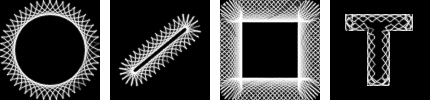
From left to right, Circle, Rack, Frame, and Selection shapes of the fixed gear. The selection in the right image was generated by selecting a large letter "T" that was produced by the text tool.
-
- Sides
-
Number of sides of the shape.
This applies only to the Polygon-Star, Sine, and Bumps shapes. Otherwise this option is disabled.
- Morph
-
Morph fixed gear shape.
This applies only to the Polygon-Star, Sine, and Bumps shapes. Otherwise this option is disabled.
- Rotation
-
Rotation of the fixed gear, in degrees.
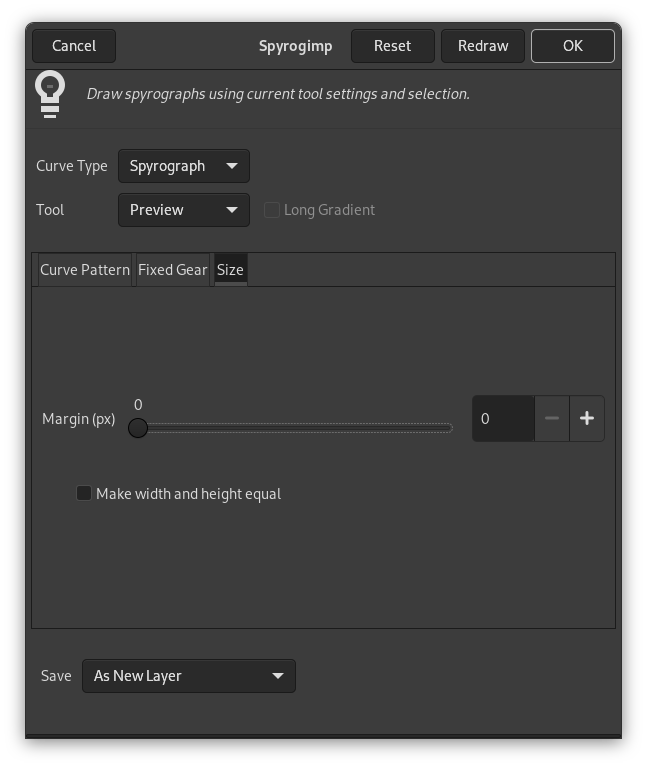
- Margin (px)
-
Margin from the edge of selection. This controls the size of the pattern.
- Make width and height equal
-
When unchecked, the pattern will fill the current image or selection. When checked, the pattern will have same width and height, and will be centered. The difference between checked and unchecked will only be noticed if the size of the width and height of the selection differ.
- Save
-
The Save dropdown determines what will happen to the temporary layer once is pressed. Available options are: As New Layer, Redraw on last active layer, and As Path.
- Redraw
-
If you change the settings of a tool, change color, or change the selection (i.e., any settings outside of the plug-in that affect the pattern), press this to update the preview to see how the pattern looks.
- Reset
-
Resets the dialog to its default settings.
- Cancel
-
Delete the temporary layer, and exit the plug-in.
- OK
-
Render pattern to image.


