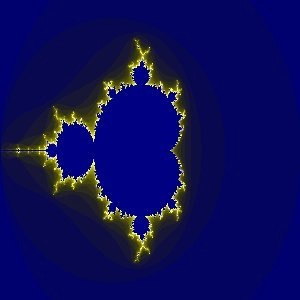
With this filter, you can create fractals and multicolored pictures verging on chaos. This filter lets you pick from a collection of presets that can be adjusted easily. In contrast, the IFS Fractal filter lets you change the fractal structure in more detail, at the cost of being more complicated.

|
Note |
|---|---|
|
If the image is in indexed mode, this menu entry is disabled. |
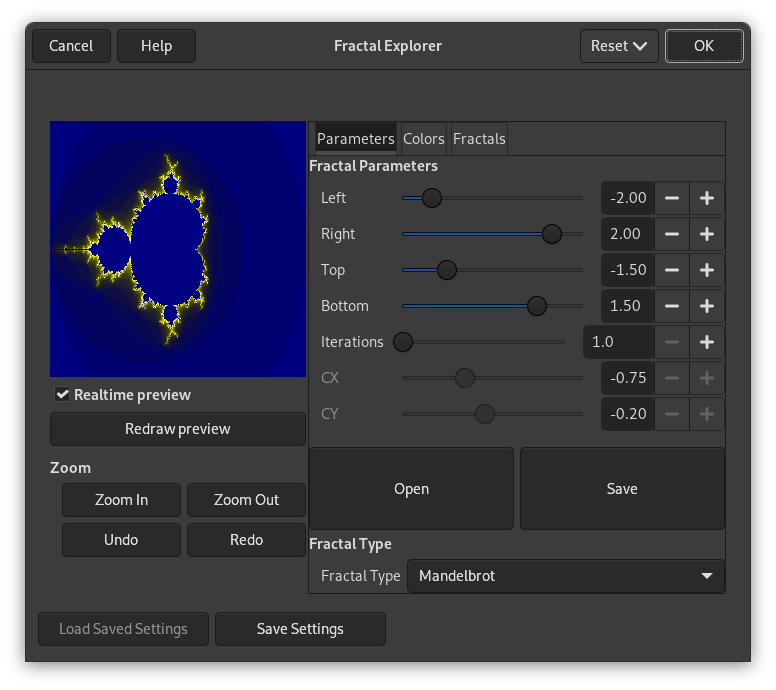
The Fractal Explorer window contains two panes: on the left there is the Preview pane with a Zoom feature, on the right you find the main options organized in tabs: Parameters, Colors, and Fractals.
- Realtime preview
-
You can disable the Realtime preview if updating the preview is slow. In that case, you can update the preview by clicking the button.
By click-dragging the mouse pointer on the preview, you can draw a rectangle delimiting the area that will be zoomed.
- Zoom
-
These buttons allow you to or the preview. The button takes you back to the previous state. The button will revert the last Undo.
This tab contains settings to adjust the calculation and select a fractal type.
- Fractal Parameters
-
These sliders and input boxes allow you to set fractal spreading, repetition and aspect.
- Left, Right, Top, Bottom
-
You can set fractal spreading between a minimum and a maximum, in the horizontal and/or vertical directions. Values are from -3.0 to 3.0.
- Iterations
-
With this parameter, you can set fractal repetition in detail. Values are from 0.0 to 1000.0
- CX, CY
-
With these parameters, you can change fractal aspect, in the horizontal (X) and/or vertical (Y) directions, except for Mandelbrot and Sierpinski types.
- Open, Save
-
With these buttons, you can open a previously saved fractal or save your work with all its parameters.
- Fractal Type
-
Here you can choose the fractal type you want. You can choose from Mandelbrot, Julia, Barnsley 1, 2 or 3, Spider, Man-o-War, Lambda or Sierpinski.
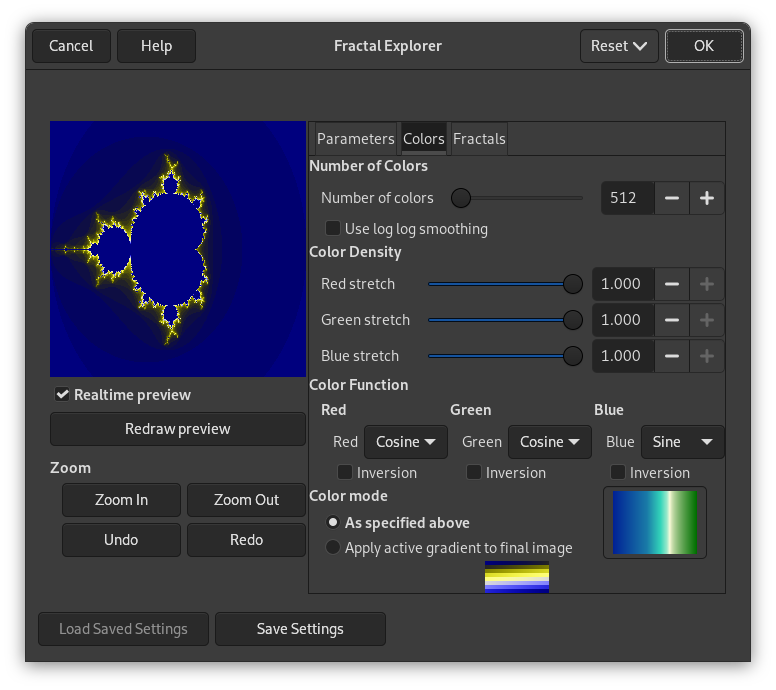
This tab contains options for fractal color setting.
Number of Colors
- Number of colors
-
This slider and its input boxes allow you to set the number of colors for the fractal, between 2 and 8192. A palette of these colors is displayed at the bottom of the tab. Actually, that's a gradient between colors in fractal: you can change colors with Color Density and Color Function options. Fractal colors don't depend on the colors of the original image. You can even use a white image for creating fractals.
- Use log log smoothing
-
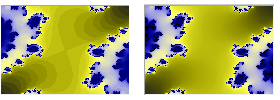
If this option is checked, the band effect is smoothed.
Color density
- Red stretch, Green stretch, Blue stretch
-
These three sliders and their text-boxes let you set the color intensity in the three color channels. Values vary from 0.0 to 1.0.
Color Function
For the Red, Green and Blue color channels, you can select how color will be treated:
- Sine
-
Color variations will be modulated according to the sine function.
- Cosine
-
Color densities will vary according to cosine function.
- None
-
Color densities will vary linearly.
- Inversion
-
If you check this option, function values will be inverted.
Color Mode
These options allow you to set where color values must be taken from.
- As specified above
-
Color values will be taken from the Color Density settings.
- Apply active gradient to final image
-
The colors used will be that of the active gradient. You can select another gradient by clicking on the button that shows the currently active gradient.
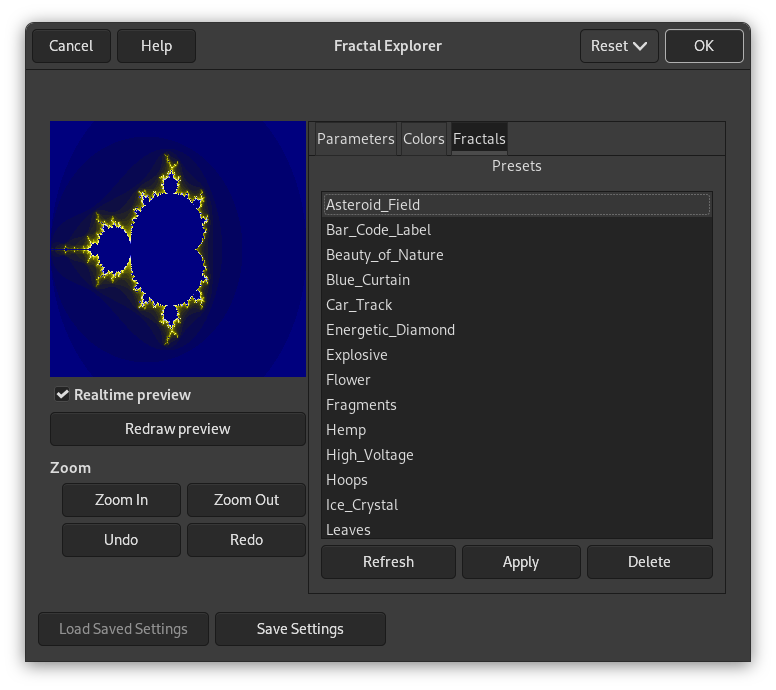
This tab contains a list of fractals with their parameters that you can use as a model and adjust. To select one, you can either double click the name, or click the name and then press .
The button allows you to update the list if you have saved your work (see the Parameters tab). You can remove a fractal from the list by clicking .


