Rectangular and elliptical selections have two modes. The default mode has handles on the selection. These handles can be used to resize the selection. Dragging from inside the selection, but not inside the handles, moves the selection. If you click the selection or press the Enter key, the handles disappear leaving only the dotted selection outline (marching ants). You can return to the mode with handles by clicking inside the selection again.
If you click-and-drag the selection without handles, you create a new selection. The other selection tools do not have this division in two modes.
As mentioned above, the “Rectangle Select” and “Ellipse Select” tools by default show a selection frame with handles. It is possible to change the size and location of the selection, but also to move the selection including the layer contents.
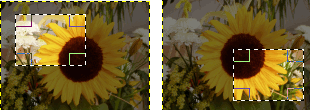
Moving or resizing the selection frame, without moving the image contents, can be done both with the mouse and with the keyboard.
To move the selection with the mouse, click inside the selection in an area that doesn't show one of the handles. Then drag it with the mouse towards your intended location.
To move the selection with the keyboard, it is currently required that the mouse pointer is inside the selection frame, or it won't work. Press and hold Alt (or Ctrl+Alt), to move one pixel at a time. To move 25 pixels at a time add the Shift key to the above combination.
To resize the selection with the mouse, place the mouse pointer in the handle area where you want to resize, and then click-drag in the desired direction. To resize in one direction, use the middle handles; to resize two neighboring directions, use the handles in one of the corners.
To resize using the keyboard, move the mouse pointer inside the handles along the edges of the selection frame, and then use the keyboard shortcuts mentioned above for moving.
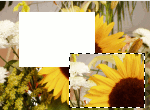
To move the selection contents (i.e. the part of the layer inside the selection), you can press Ctrl+Alt and click-and-drag the selection. The original location of the selected part of the layer will be emptied (i.e. filled with the current background color).
Note that this action will create a floating layer that needs to be anchored to the layer below, or turned into a new layer.
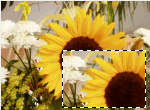
To move the selection contents without changing the original, use Shift+Alt and click-and-drag the selection. The original location of the selected part of the layer will stay the same while you move a copy.
Note that this action will create a floating layer that needs to be anchored to the layer below, or turned into a new layer.

|
Note |
|---|---|
|
On some systems, you must push Alt before Shift or Ctrl. On these systems, pressing Shift or Ctrl first, causes GIMP to enter a mode that adds or subtracts from the current selection. After doing that, the Alt key is ineffective! |
The other selection tools (Free Select, Fuzzy Select, By Color Select, etc.) have no handles. Using click-and-drag doesn't move these selections. To move their contents, as with rectangular and elliptical selections, you have to press the Ctrl+Alt or Shift+Alt keys and then use click-and-drag.
If you use keyboard arrow keys instead of click-and-drag, you move only the selection outline.
You can also use a more roundabout method to move a selection. Make the selection floating. Then you can move its content using the Move tool, emptying the original location, by click-and-dragging or keyboard arrow keys.


