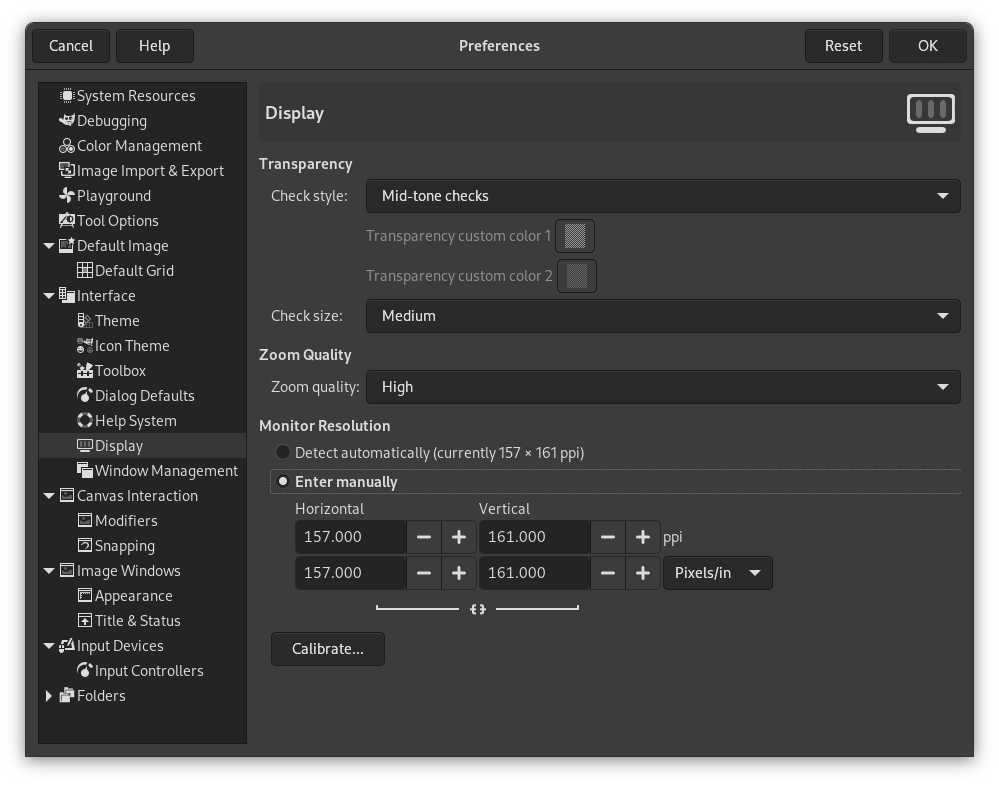
This page lets you customize the way transparent parts of an image are represented, and lets you recalibrate the resolution of your monitor.
The preferences dialog can be accessed from the main menu, through → .
Transparency
- Check style
-
By default, GIMP indicates transparency using a checkerboard pattern with mid-tone checks, but you can change this if you want, either to a different type of checkerboard, or to solid black, white, or gray.
If you choose Custom checks, two color selection buttons show up that allow you to set your own preferred colors for the checkerboard.
- Check size
-
Here you can alter the size of the squares in the checkerboard pattern used to indicate transparency.
Zoom Quality
- Zoom Quality
-
When zooming out on large images feels sluggish, you can change this setting from High quality to Low. This can improve the speed of displaying the zoomed-out image, at the cost of lowering the quality of the display.
Monitor Resolution
Monitor Resolution is the ratio of pixels, horizontally and vertically, to inches. You have three options:
- Detect automatically
-
Get the monitor resolution from the windowing system (easiest, probably inaccurate)
- Enter Manually
-
Enter the data manually
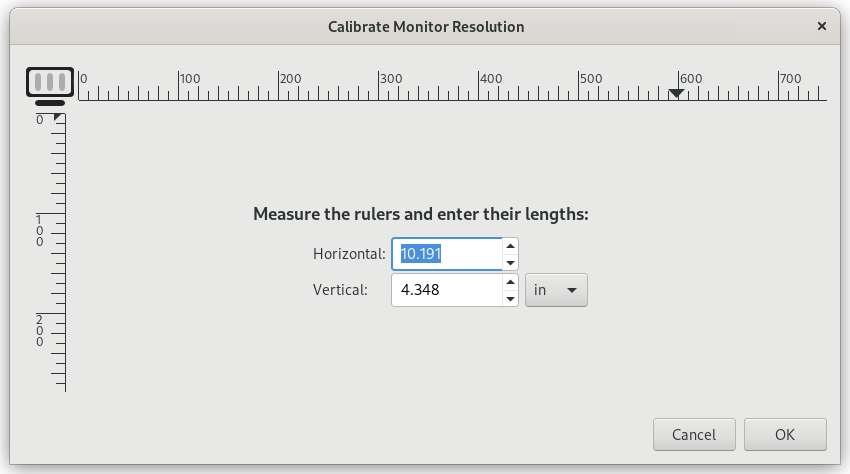
- Calibrate…
-
Push the button to get the Calibrate Dialog.
Some monitors can be impressively off. You will need a soft ruler.