The command opens the “Scale Layer” dialog that allows you to resize the layer and its contents. The image loses some of its quality by being scaled. The command displays a dialog where you can set parameters concerning the size of the layer and the image quality.

|
Note |
|---|---|
|
This command only works on a single layer. |

|
Tip |
|---|---|
|
Another way to scale a layer is using the Scale tool with the Transform set to Layer. |
You can access this command
-
From the main menu through → .
-
From the Layers Dialog, you can access it through the command of its context menu.
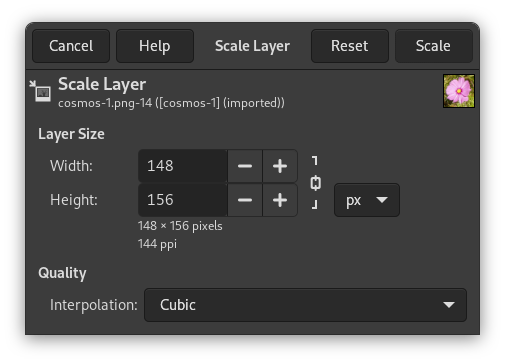
- Layer Size
-
When you enlarge a layer, GIMP has to calculate new pixels from the existing ones. This procedure is called “interpolation”. Please note that no matter which interpolation algorithm is used, no new information is added to the image by interpolation. If there are places in the layer which have no details, you will not get any new ones by scaling it. It is much more likely that the layer will look somewhat blurred after scaling. Similarly, when you reduce a layer, the image loses some of its quality when pixels are removed.
- Width, Height
-
The command displays a dialog which shows the dimensions of the original layer in pixels. You can set the new Width and Height for the layer in the two text boxes. If the adjacent
 chain icon is unbroken, the width
and height are automatically adjusted to hold their ratio
constant. If you break the chain by clicking on it, you
can set them separately, but this will result in
distorting the layer.
However, you do not have to set the dimensions in pixels. You can choose different units from the drop-down menu. If you choose percent as units, you can set the layer size relative to its original size. You can also use physical units, like inches or millimeters. However if you do that, you should pay attention to the X/Y resolution of the image.
If you enlarge a layer, the missing pixels are calculated by interpolation, but no new details are added. The more the layer is enlarged, and the more times it is enlarged, the more blurred it becomes. The exact result of the enlargement depends upon the interpolation method you choose. After scaling, you can improve the result by using the Sharpen (Unsharp Mask) filter, but it is much better for you to use a high resolution when scanning, taking digital photographs or producing digital images by other means. It is an inherent characteristic of raster images that they do not scale up well.
- Quality
-
To change the size of the layer, GIMP either has to add or remove pixels. The method it uses to do this has a considerable impact on the quality of the result. You can choose the method of interpolating the colors of the pixels from the Interpolation drop-down menu.
- Interpolation
-
This lets you choose the interpolation method used for scaling. See for details about each method the Interpolation documentation of the Transform tools.


