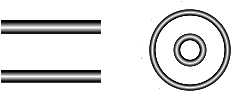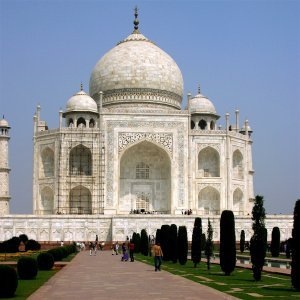
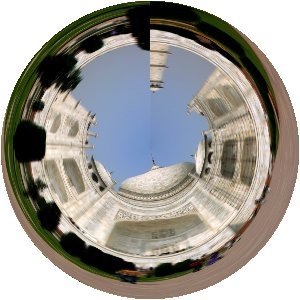
It gives a circular or a rectangular representation of your image with all the possible intermediates between both.
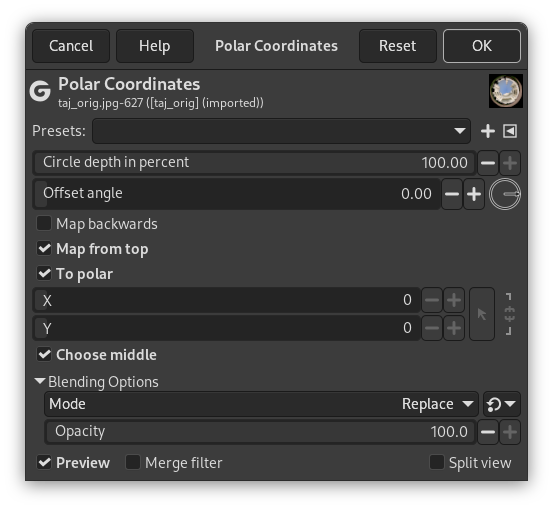
- Presets, “Input Type”, Clipping, Blending Options, Preview, Merge filter, Split view
-

Note These options are described in Section 2, “Common Features”.
- Circle depth in percent
-
Slider and input box allow you to set the "circularity" of the transformation, from rectangle (0%) to circle (100%).
- Offset angle
-
This option controls the angle the drawing will start from (0 - 359°), and so turns it around the circle center.
- Map backwards
-
When this option is checked, the drawing will start from the right instead of the left.
- Map from top
-
If unchecked, the mapping will put the bottom row in the middle and the top row on the outside. If checked, it will be the opposite.
- To polar
-
If unchecked, the image will be circularly mapped into a rectangle (odd effect). If checked, the image will be mapped into a circle.
- X, Y
-
These polar coordinates are active only if the “Choose middle” option is unchecked.
- Choose middle
-
Checked by default: origin center is at the middle of the layer. If unchecked, you can modify X and Y parameters to position the origin center.